3.4 Tour of RStudio
RStudio is an Integrated Development Environment (IDE) for R, a programming language for statistical computing and graphics. This section provides an overview of RStudio’s interface and basic functionality.
3.4.1 RStudio Layout
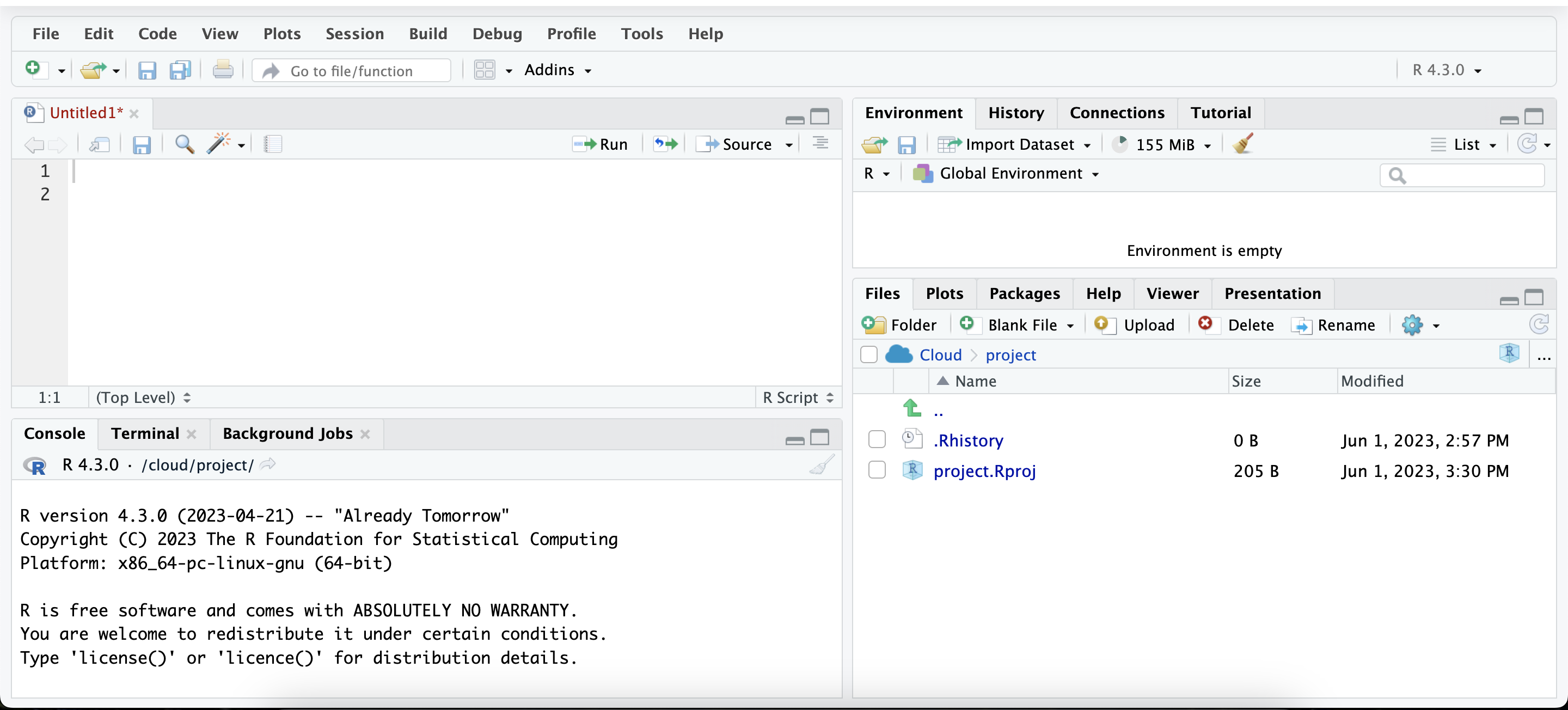
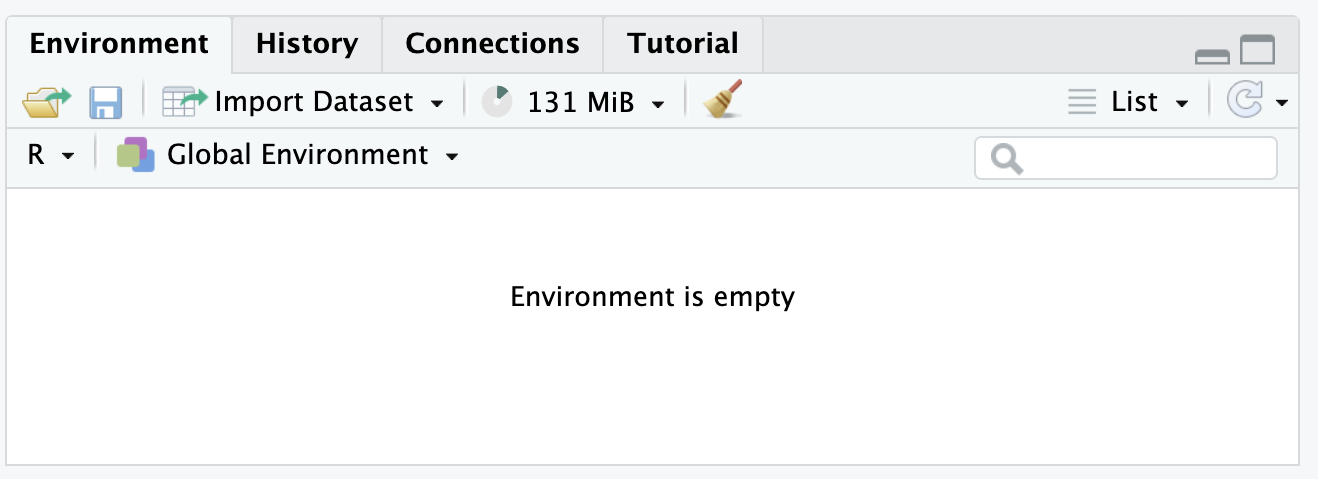
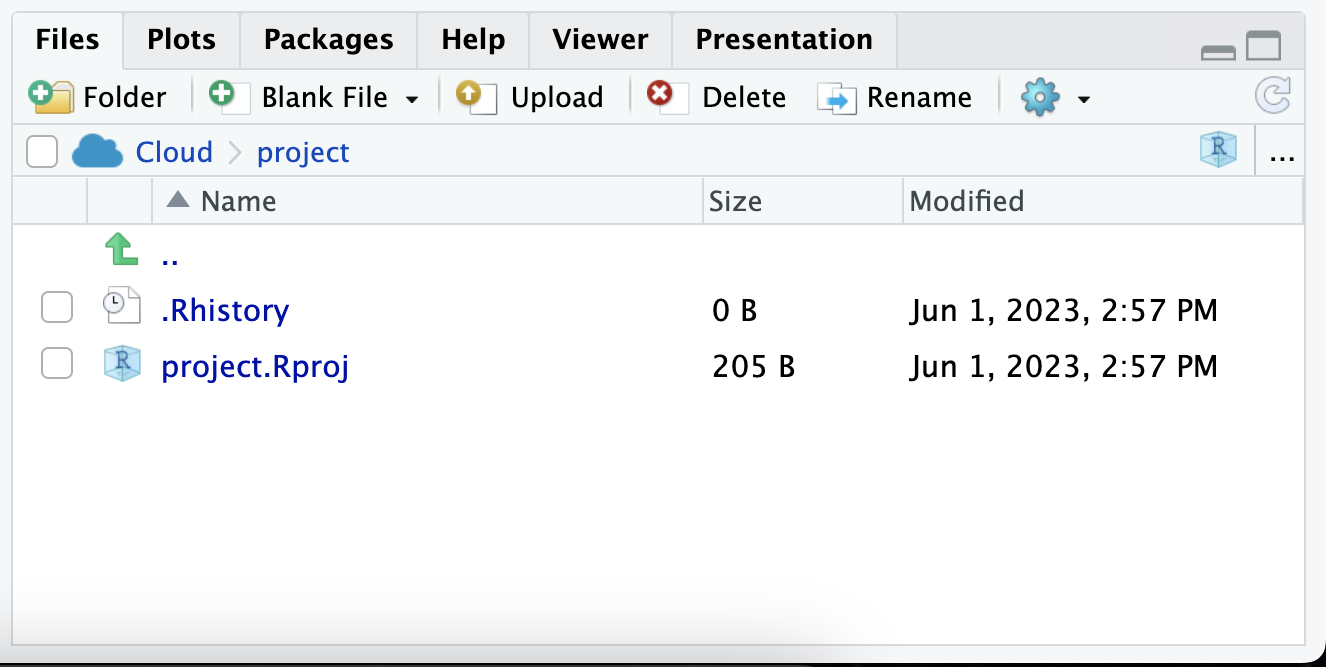
RStudio’s interface is divided into four main panels: the Source Panel, the Console Panel, the Environment/History Panel, and the Files/Plots/Packages/Help Panel.
3.4.1.1 Source Panel
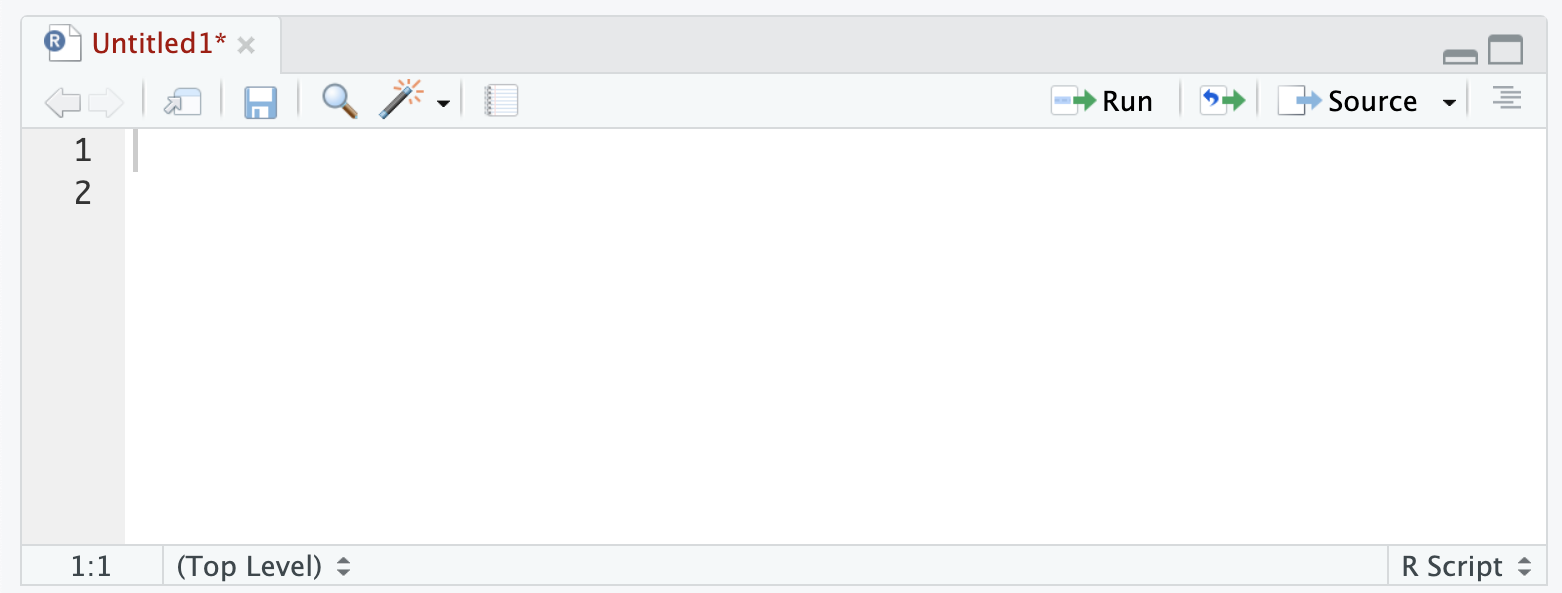
The top-left panel is the Source Panel, where R scripts, functions, and commands are written. New R scripts can be created via the menu options: File -> New File -> R Script.
3.4.1.2 Console Panel
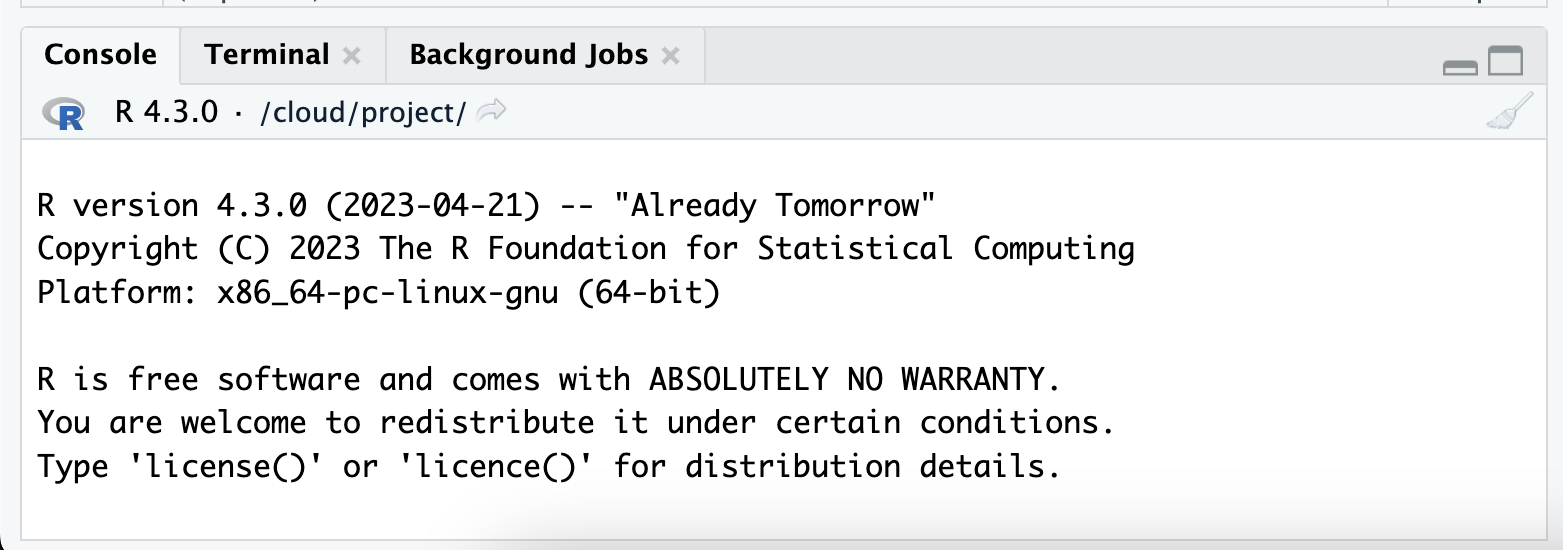
Below the Source Panel is the Console Panel, where R code is executed. Any command executed in the script or typed directly into the console will appear here along with its output.
3.4.2 Writing and Running R Code
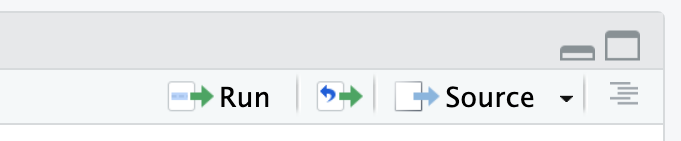
R scripts can be written in the Source Panel and executed in a few ways. To run the current line or selected lines, use Ctrl+Enter (or Cmd+Enter on a Mac) or click the “Run” button in the toolbar. To run the entire script, use the Source button in the toolbar.