3 Data, Datasets, and Data Structure
PRELIMINARY AND INCOMPLETE
Understanding data is fundamental to effective analysis. In the realm of business analytics, data comes in various forms, each with its own set of characteristics and applications. This chapter will guide you through the different types of data, the structures in which data can be organized, and how these concepts translate into practical use within R.
3.1 Chapter Goals
Upon concluding this chapter, readers will be equipped with the skills to:
- Identify and recall the different types of data and data structures in R.
- Explain the significance of various data types and structures in the context of business analytics.
- Import, clean, and transform common business datasets using R.
- Distinguish between different data structures and select the appropriate one for specific analytical tasks.
- Assess the quality and suitability of datasets for analysis after performing data cleaning and transformation.
- Construct and export well-structured datasets that are ready for advanced analysis and reporting.
3.2 Types of Data
Understanding the types of data is fundamental to performing effective analysis. Data can be broadly categorized based on its characteristics, with each type requiring different analytical approaches. The primary types of data are quantitative and qualitative, each of which plays a unique role in statistical analysis.
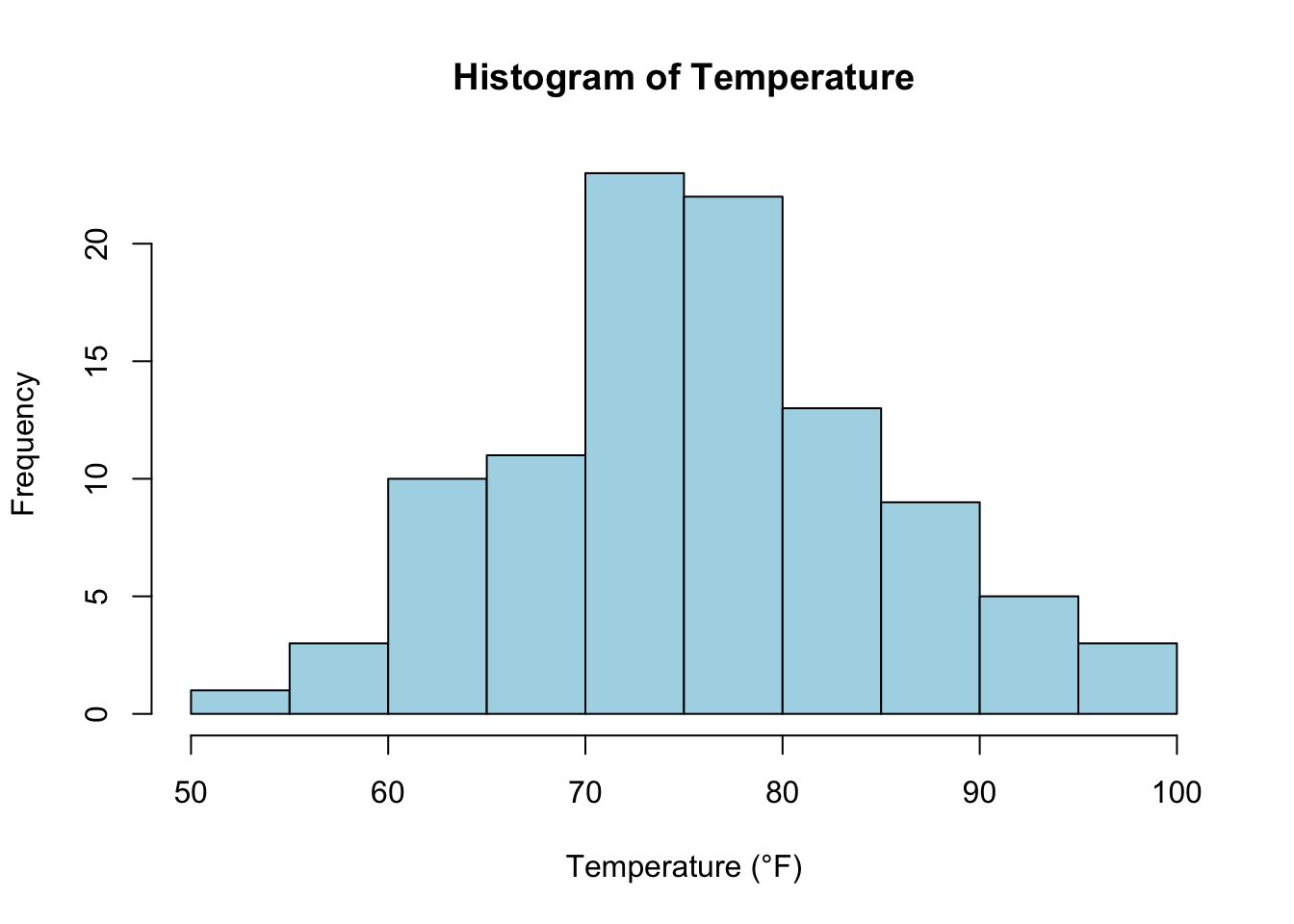
Quantitative data represents numerical values that can be measured and is further subdivided into continuous and discrete data. Continuous data includes values that can take any real number within a given range. These values often arise from measurements and can include decimals or fractions. For instance, the temperature of a city measured over time, the revenue generated by a company, or the height of individuals are examples of continuous data. In R, you can visualize continuous data using histograms or density plots. For example, consider the following code that generates a histogram of a continuous variable, such as temperature:
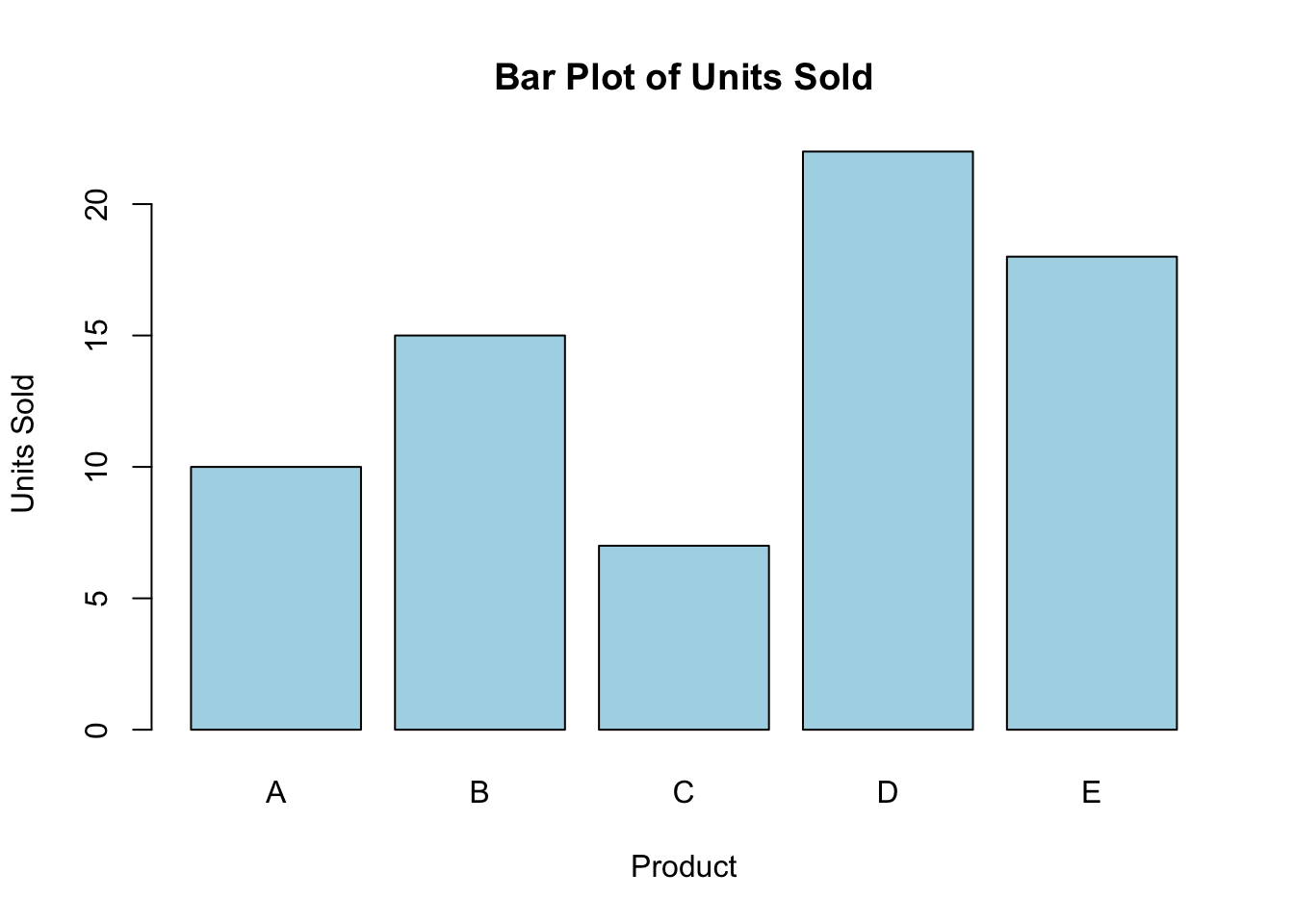
On the other hand, discrete data consists of values that represent counts and can only take specific numbers, usually whole numbers. These values typically result from counting occurrences of specific events or entities. For example, the number of employees in a department, the units sold by a retailer, or the number of customer complaints received in a month are all discrete data. Discrete data can be effectively visualized using bar charts. Here’s an example in R that visualizes the number of units sold:
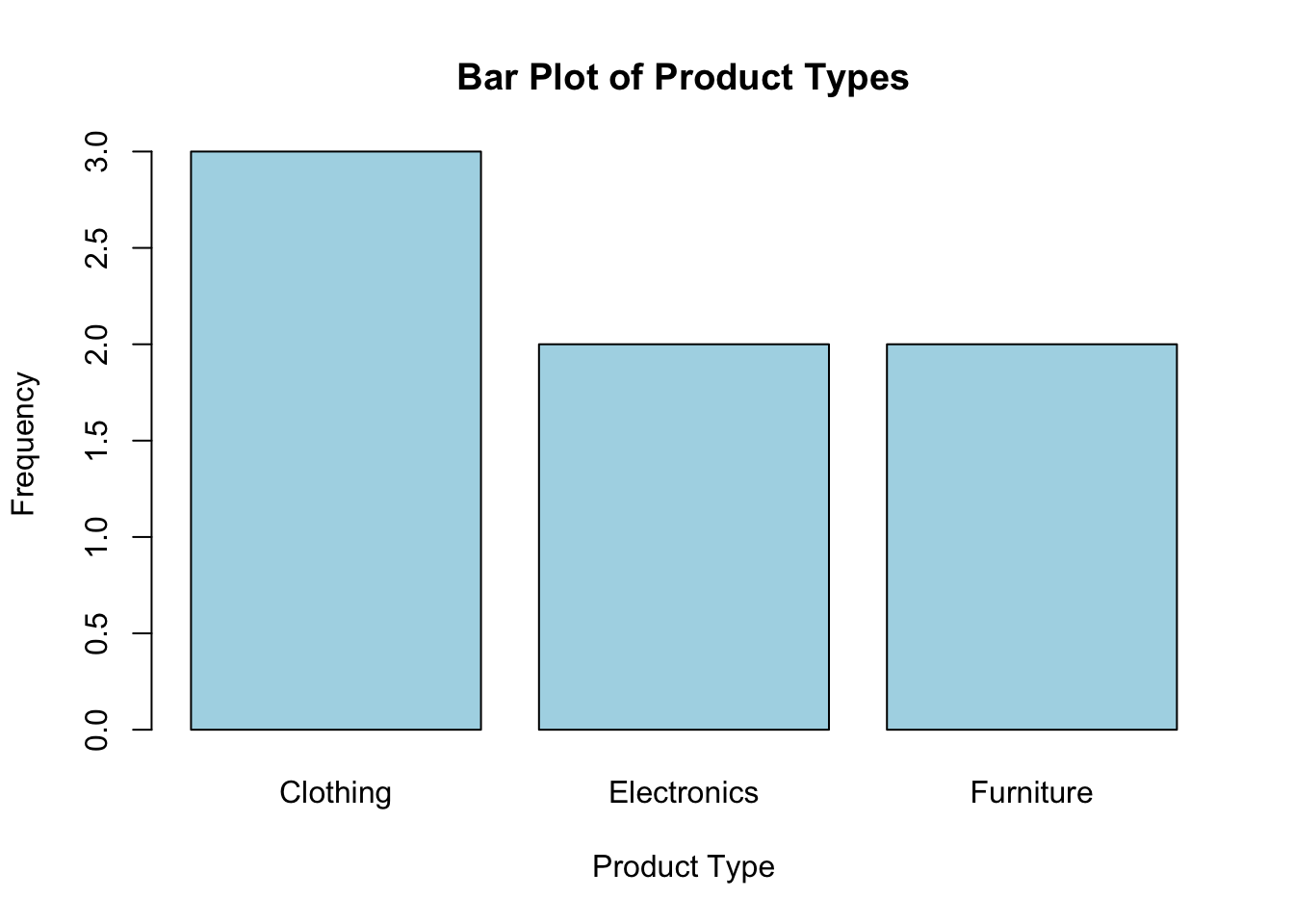
Qualitative data, also known as categorical data, represents attributes or categories rather than numerical values. This type of data is subdivided into nominal and ordinal data. Nominal data consists of categories that do not have any inherent order or ranking. For example, product types such as electronics, furniture, and clothing, or colors like red, blue, and green, are nominal data. The frequency of each category can be visualized using pie charts or bar charts. Consider the following R code that creates a bar chart for product types:
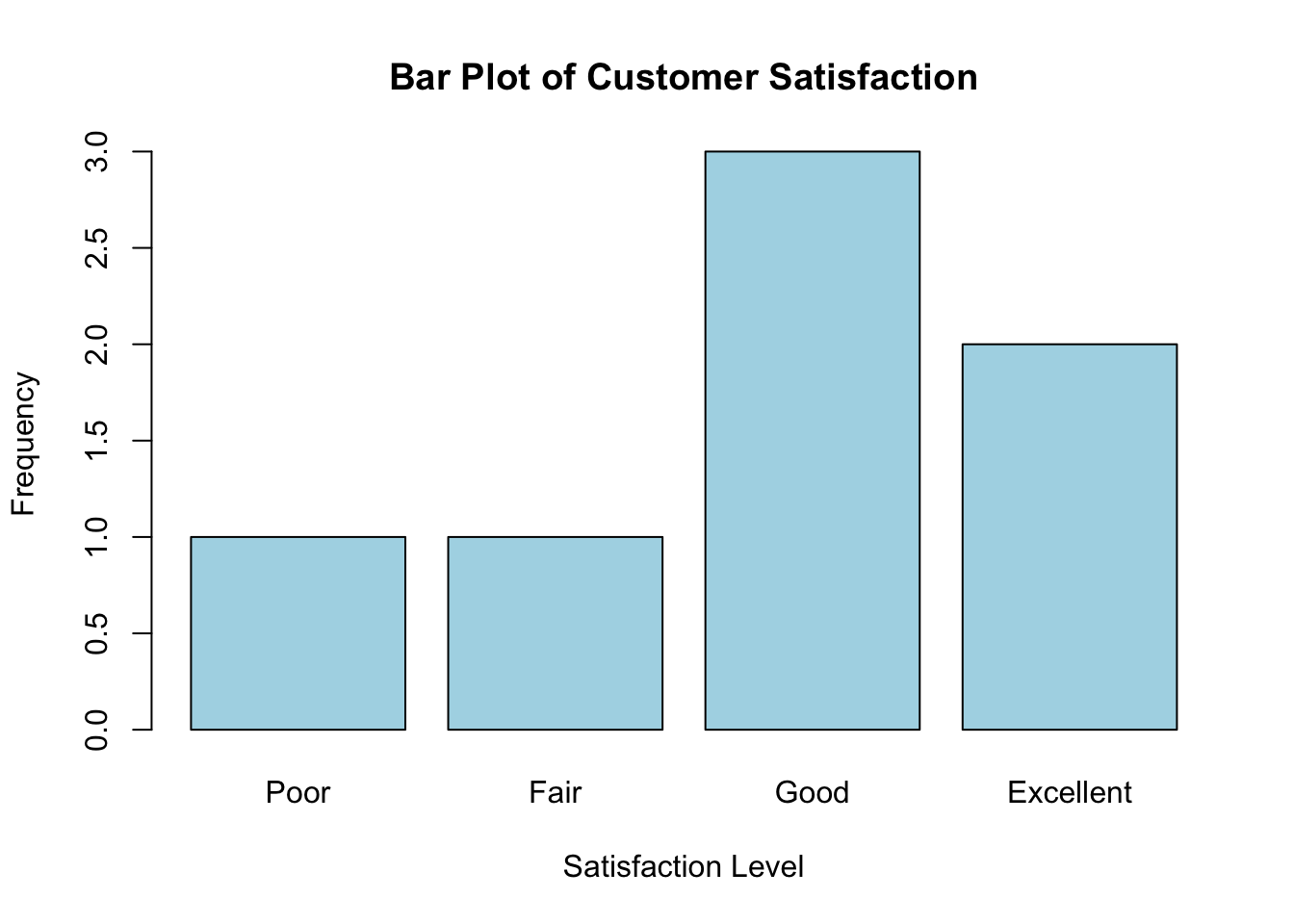
Ordinal data, on the other hand, represents categories with a meaningful order, though the intervals between the categories are not defined or consistent. For instance, customer satisfaction ratings such as poor, fair, good, and excellent, or education levels like high school, bachelor’s degree, and master’s degree, are ordinal data because they imply a rank or order. However, the difference between these categories is not measurable or uniform. Ordinal data can be visualized using ordered bar charts. The following R code demonstrates how to create an ordered bar chart for customer satisfaction ratings:
Understanding the distinctions between these types of data is crucial for selecting appropriate statistical methods and ensuring accurate interpretations of results. Quantitative and qualitative data offer unique insights and pose specific challenges, making it essential to recognize the nature of your data before proceeding with any analysis. Whether you’re dealing with continuous temperature readings, discrete counts of product units sold, or ordinal satisfaction ratings, the right analytical approach will depend on correctly identifying the type of data at hand.
3.3 Data Structures in R
R offers a variety of data structures to organize and manage different types of data. Each structure serves specific analytical purposes and allows for various operations. Below are the main data structures in R, along with examples, explanations of the syntax, and methods to access data within each structure.
3.3.1 Vectors
A vector is a one-dimensional array that holds data of a single type. Vectors are the simplest R structure and can contain numeric, character, or logical data.
Example: Creating and Accessing a Numeric Vector
To create a vector, you can use the c() function, which combines values into a vector. For example, the following R code creates a numeric vector named sales_vector, which contains sales figures:
[1] 120 150 90 100 130 170 200To access an element within a vector, use square brackets [] with the index of the element. For example, sales_vector[1] accesses the first element of the vector. In R, indexing starts at 1, so sales_vector[1] returns 120:
3.3.2 Matrices
Matrices extend vectors to two dimensions, where each element is of the same type. They are useful for mathematical operations across rows and columns.
Example: Creating and Accessing a Numeric Matrix
The matrix() function creates a matrix. The first argument is the vector of elements, while nrow specifies the number of rows, ncol specifies the number of columns, and byrow = TRUE indicates that the matrix should be filled by rows:
To access an element within a matrix, use square brackets with the row and column indices, separated by a comma. For example, sales_matrix[1, 2] accesses the element in the first row and second column, returning 150:
3.3.3 Data Frames
Data frames are two-dimensional structures where each column can contain different types of data. They are the most common structure for storing datasets in R.
Example: Creating and Accessing a Data Frame
The data.frame() function creates a data frame. Each argument represents a column in the data frame. For example, the following R code creates a data frame named sales_data, where Product is a character vector, and Sales_Q1 and Sales_Q2 are numeric vectors:
To access an entire column, you can use the $ operator followed by the column name. For example, sales_data$Sales_Q1 accesses the Sales_Q1 column:
To access a specific element, use square brackets with the row index and column name. For example, sales_data[2, "Sales_Q1"] returns 150:
3.3.4 Lists
A list can contain elements of different types, including vectors, matrices, data frames, and even other lists. This makes lists highly flexible for storing complex data structures.
Example: Creating and Accessing a List
The list() function creates a list by combining different elements, such as vectors, matrices, and data frames. For example, the following R code creates a list named sales_list, combining product_vector, sales_vector, and sales_data (Note that for this code to run you will need these objects to exist):
List of 3
 $ Products: chr [1:5] "Canon EOS R5" "Nikon Z7 II" "Sony Alpha A7R IV" "Fujifilm X-T4" ...
 $ Sales   : num [1:5] 215 415 264 453 476
 $ Data    :'data.frame':   20 obs. of  3 variables:
  ..$ Product: chr [1:20] "Canon EOS R5" "Canon EOS R5" "Canon EOS R5" "Canon EOS R5" ...
  ..$ Region : chr [1:20] "North" "South" "East" "West" ...
  ..$ Sales  : num [1:20] 55 103 139 105 96 146 95 118 107 60 ...
To access elements within a list, you can use the $ operator followed by the element name. For example, sales_list$Sales accesses the Sales element:
Alternatively, you can use double square brackets [[ ]] with the position of the element (e.g., sales_list[[1]]), which returns the first element of the list:
[1] "Canon EOS R5"        "Nikon Z7 II"         "Sony Alpha A7R IV"
[4] "Fujifilm X-T4"       "Panasonic Lumix GH5"
In R, lists are a flexible data structure that can store different types of elements, including other lists. Accessing elements within a list can be done using either single square brackets [] or double square brackets [[ ]], but they behave differently:
-
Single Square Brackets
[]: When you use single square brackets with a list, R returns a sublist containing the specified elements. This means that the result is still a list, even if it only contains one element. For example,sales_list[1]would return a list containing the first element ofsales_list, but the result itself is a list:
$Products
[1] "Canon EOS R5"        "Nikon Z7 II"         "Sony Alpha A7R IV"
[4] "Fujifilm X-T4" "Panasonic Lumix GH5"-
Double Square Brackets
[[ ]]: When you use double square brackets with a list, R directly extracts the specified element itself, rather than returning it as a sublist. This is useful when you want to work with the actual element within the list, such as a vector or data frame, rather than with a list that contains that element. For example,sales_list[[1]]would return the actual vector stored as the first element ofsales_list:
[1] "Canon EOS R5"        "Nikon Z7 II"         "Sony Alpha A7R IV"
[4] "Fujifilm X-T4"       "Panasonic Lumix GH5"
In summary, use [] when you want to retrieve a sublist (i.e., a list of elements), and use [[ ]] when you want to directly access and manipulate the actual content of the list element.
3.3.5 Factors
Factors are used for storing categorical data and are especially useful for handling ordinal data. They ensure proper treatment of categorical variables in statistical models.
Example: Creating and Accessing a Factor
The factor() function creates a factor, a special type of vector used for categorical data. For example, the following R code creates a factor named satisfaction_levels:
# Creating a factor
satisfaction_levels <- factor(c("High", "Medium", "Low", "Medium", "High"))

# Accessing levels of the factor
levels_satisfaction <- levels(satisfaction_levels)

# Accessing a specific level by position
first_level <- satisfaction_levels[1]

# Printing the accessed levels and specific level
print(levels_satisfaction)
[1] "High" "Low" "Medium"[1] High
Levels: High Low MediumTo access a specific level within a factor, use square brackets with the index of the level (e.g., satisfaction_levels[1]), which returns High.
Example: Creating and Accessing an Ordered Factor
To create an ordered factor, use the factor() function with levels and ordered arguments. For example:
# Creating an ordered factor
ordered_levels <- factor(c("Low", "Medium", "High", "Medium", "Low"),
                         levels = c("Low", "Medium", "High"),
                         ordered = TRUE)

# Checking if the factor is ordered
is_ordered <- is.ordered(ordered_levels)

# Accessing a specific level by position
second_level <- ordered_levels[2]

# Printing the accessed element and order status
print(is_ordered)
[1] TRUE[1] Medium
Levels: Low < Medium < HighThis R code creates an ordered factor named ordered_levels. The function is.ordered() checks if the factor is ordered, and accessing elements within an ordered factor follows the same syntax as with an unordered factor.
3.4 Accessing and Preparing Common Business Datasets
Business datasets often come from various sources such as databases, spreadsheets, or APIs. Preparing these datasets for analysis involves several key steps, including data import, cleaning, and transformation.
3.4.1 Importing Data into R
R provides a wide range of functions for importing data from various sources. Below are some common methods:
Example: Importing Data from a CSV File
The read.csv() function is commonly used to import data from a CSV file into R. For example, if your CSV file uses a semicolon as a delimiter, you would specify this using the sep = ";" argument:
Once the data is imported, you can quickly inspect the first few rows using the head() function:
| Product | Region | Sales |
|---|---|---|
| Canon EOS R5 | North | 55 |
| Canon EOS R5 | South | 103 |
| Canon EOS R5 | East | 139 |
| Canon EOS R5 | West | 105 |
| Nikon Z7 II | North | 96 |
| Nikon Z7 II | South | 146 |
Example: Importing Data from an Excel File
If your data is stored in an Excel file, you can use the read_excel() function from the readxl package. This function allows you to specify the sheet number or name from which to import data:
3.4.2 Data Cleaning with Business Applications Using Built-in Datasets
Data cleaning is a crucial step in preparing data for analysis, especially in business contexts. It involves identifying and correcting (or removing) errors and inconsistencies within the dataset. Below are some common tasks and examples using the built-in mtcars dataset in R, which can be relevant for automotive industry analysis.
Handling Missing Values
Handling missing data is essential to ensure the integrity of your analysis. Here’s how you can identify and replace missing values in a dataset:
[1] 5| mpg | cyl | disp | hp | drat | wt | qsec | vs | am | gear | carb |
|---|---|---|---|---|---|---|---|---|---|---|
| 21 | 6 | 160 | 110 | 3.9 | 2.62 | 16.5 | 0 | 1 | 4 | 4 |
| 21 | 6 | 160 | 110 | 3.9 | 2.88 | 17 | 0 | 1 | 4 | 4 |
| 19.8 | 4 | 108 | 93 | 3.85 | 2.32 | 18.6 | 1 | 1 | 4 | 1 |
| 21.4 | 6 | 258 | 110 | 3.08 | 3.21 | 19.4 | 1 | 0 | 3 | 1 |
| 18.7 | 8 | 360 | 175 | 3.15 | 3.44 | 17 | 0 | 0 | 3 | 2 |
| 18.1 | 6 | 225 | 105 | 2.76 | 3.46 | 20.2 | 1 | 0 | 3 | 1 |
- The
is.na()function checks for missing values in thempgcolumn, whilesum()counts how many missing values exist. - The
ifelse()function replaces missing values in thempgcolumn with the mean of that column, ensuring the dataset remains robust for analysis. - The
head()function displays the cleaned data.
Removing Duplicates
Duplicate records can skew analysis results. Removing them is often necessary:
| mpg | cyl | disp | hp | drat | wt | qsec | vs | am | gear | carb |
|---|---|---|---|---|---|---|---|---|---|---|
| 21 | 6 | 160 | 110 | 3.9 | 2.62 | 16.5 | 0 | 1 | 4 | 4 |
| 21 | 6 | 160 | 110 | 3.9 | 2.88 | 17 | 0 | 1 | 4 | 4 |
| 19.8 | 4 | 108 | 93 | 3.85 | 2.32 | 18.6 | 1 | 1 | 4 | 1 |
| 21.4 | 6 | 258 | 110 | 3.08 | 3.21 | 19.4 | 1 | 0 | 3 | 1 |
| 18.7 | 8 | 360 | 175 | 3.15 | 3.44 | 17 | 0 | 0 | 3 | 2 |
| 18.1 | 6 | 225 | 105 | 2.76 | 3.46 | 20.2 | 1 | 0 | 3 | 1 |
- The
duplicated()function identifies duplicate rows, and the!operator is used to keep only the unique rows. - The
head()function is used to inspect the data after duplicates have been removed.
Correcting Data Types
Ensuring that each column in your dataset has the correct data type is critical for accurate analysis:
'data.frame':   32 obs. of  11 variables:
 $ mpg : num  21 21 19.8 21.4 18.7 ...
 $ cyl : Factor w/ 3 levels "4","6","8": 2 2 1 2 3 2 3 1 1 2 ...
 $ disp: num  160 160 108 258 360 ...
 $ hp  : num  110 110 93 110 175 105 245 62 95 123 ...
 $ drat: num  3.9 3.9 3.85 3.08 3.15 2.76 3.21 3.69 3.92 3.92 ...
 $ wt  : num  2.62 2.88 2.32 3.21 3.44 ...
 $ qsec: num  16.5 17 18.6 19.4 17 ...
 $ vs  : num  0 0 1 1 0 1 0 1 1 1 ...
 $ am  : num  1 1 1 0 0 0 0 0 0 0 ...
 $ gear: chr  "4" "4" "4" "3" ...
$ carb: num 4 4 1 1 2 1 4 2 2 4 ...- The
as.factor()function converts thecylcolumn (number of cylinders) from numeric to factor, which is useful when you need to perform categorical analysis. - The
as.character()function converts thegearcolumn from numeric to character format, which may be needed for string operations or when the data is not inherently numerical. - The
str()function displays the structure of the data, showing the data types of each column, which is helpful for verifying that your data has been correctly formatted.
3.5 Transforming Data for Business Analysis
Once the data is clean, it often needs to be transformed to make it suitable for business analysis. This involves reshaping data, creating new variables, or aggregating data to extract meaningful insights.
3.5.1 Reshaping Data
R provides powerful tools for reshaping data, such as pivoting data between wide and long formats using the tidyr package. This is particularly useful when you need to change the structure of your dataset for specific types of analysis or visualization.
The pivot_longer() function from the tidyr package allows you to reshape your data from a wide format (where different variables are in separate columns) to a long format (where variables are combined into a single column).
| cyl | disp | drat | qsec | vs | am | gear | carb | Metric | Value |
|---|---|---|---|---|---|---|---|---|---|
| 6 | 160 | 3.9 | 16.5 | 0 | 1 | 4 | 4 | mpg | 21 |
| 6 | 160 | 3.9 | 16.5 | 0 | 1 | 4 | 4 | hp | 110 |
| 6 | 160 | 3.9 | 16.5 | 0 | 1 | 4 | 4 | wt | 2.62 |
| 6 | 160 | 3.9 | 17 | 0 | 1 | 4 | 4 | mpg | 21 |
| 6 | 160 | 3.9 | 17 | 0 | 1 | 4 | 4 | hp | 110 |
| 6 | 160 | 3.9 | 17 | 0 | 1 | 4 | 4 | wt | 2.88 |
- The
pivot_longer()function takes themtcarsdataset and reshapes it so that the columnsmpg,hp, andwtare converted into key-value pairs, withMetricas the new column containing the names of the variables, andValueas the new column containing the corresponding values. - The
head()function is used to inspect the first few rows of the reshaped data, making it easier to analyze trends across different metrics.
3.5.2 Creating New Variables
Creating new variables is a common task in data transformation, often involving calculations, categorization, or complex transformations. The mutate() function from the dplyr package is particularly useful for this purpose.
You can use the mutate() function to create new variables based on existing ones. For example, creating a performance ratio to evaluate vehicle performance in the mtcars dataset:
| mpg | cyl | disp | hp | drat | wt | qsec | vs | am | gear | carb | PerformanceRatio |
|---|---|---|---|---|---|---|---|---|---|---|---|
| 21 | 6 | 160 | 110 | 3.9 | 2.62 | 16.5 | 0 | 1 | 4 | 4 | 42 |
| 21 | 6 | 160 | 110 | 3.9 | 2.88 | 17 | 0 | 1 | 4 | 4 | 38.3 |
| 19.8 | 4 | 108 | 93 | 3.85 | 2.32 | 18.6 | 1 | 1 | 4 | 1 | 40.1 |
| 21.4 | 6 | 258 | 110 | 3.08 | 3.21 | 19.4 | 1 | 0 | 3 | 1 | 34.2 |
| 18.7 | 8 | 360 | 175 | 3.15 | 3.44 | 17 | 0 | 0 | 3 | 2 | 50.9 |
| 18.1 | 6 | 225 | 105 | 2.76 | 3.46 | 20.2 | 1 | 0 | 3 | 1 | 30.3 |
- The
mutate()function adds a new columnPerformanceRatio, which is calculated as the ratio of horsepower (hp) to weight (wt). This ratio is a critical metric in automotive performance analysis, as it provides insights into a vehicle’s power relative to its weight. - The
head()function displays the first few rows of the dataset with the newly created variable.
3.5.3 Aggregating Data
Aggregating data is essential for summarizing large datasets, which helps in understanding patterns or trends across groups. This often involves grouping the data by a specific variable and then applying summary statistics.
To calculate the average fuel efficiency by the number of cylinders, you can use the group_by() and summarise() functions from the dplyr package:
# A tibble: 3 × 2
  cyl   AverageMPG
  <fct>      <dbl>
1 4           25.3
2 6           19.8
3 8 15.5- The
group_by()function groups themtcarsdataset by thecylcolumn, which represents the number of cylinders in the vehicle’s engine. - The
summarise()function then calculates the average miles per gallon (mpg) for each group, providing valuable insights into how fuel efficiency varies with engine size. - The
print()function is used to display the aggregated data, which shows the averagempgfor vehicles with different numbers of cylinders.
3.6 Exporting Data
R allows you to export data in various formats, making it easy to share your analysis results or prepare data for further use in other applications. Exporting data is a crucial step in the data analysis workflow, enabling you to save your processed data, analysis results, or reports in formats that are accessible and convenient for stakeholders. Below are examples of how to export data to CSV and Excel formats, two of the most commonly used file types for data sharing.
3.6.1 Exporting Data to a CSV File
One of the most common formats for exporting data is CSV (Comma-Separated Values). CSV files are widely supported by various software applications, making them an excellent choice for sharing data across different platforms. The write.csv() function in R allows you to export a data frame to a CSV file, making it straightforward to create a text-based file that can be easily opened in spreadsheet applications like Microsoft Excel, Google Sheets, or text editors.
Exporting Data to a CSV File
- The
write.csv()function is used to export thesales_datadata frame to a CSV file located at the specified path. - The
row.names = FALSEargument ensures that row names (which are typically the indices of the data frame) are not included in the exported file. This is often desirable because including row names can introduce an extra column that might not be needed or could cause confusion when importing the data into other software. - CSV files use commas as delimiters by default, but you can customize this by using the
separgument if needed (e.g.,sep = ";"for semicolon-separated values). - CSV files do not support complex data types such as lists or matrices within a single cell, so ensure that your data frame is appropriately formatted before exporting.
3.6.2 Exporting Data to an Excel File
While CSV files are simple and universally compatible, sometimes you need to preserve more complex data structures, formatting, or multiple sheets within a single file. In such cases, exporting data to an Excel file is a better option. Excel files allow for rich formatting options, multiple worksheets, and the storage of different types of data within a structured environment. R provides several packages for exporting data to Excel, with writexl being one of the most user-friendly options.
Exporting Data to an Excel File
- The
write_xlsx()function from thewritexlpackage exports thesales_datadata frame to an Excel file at the specified path. - Unlike CSV, Excel files (
.xlsx) preserve formatting and support multiple worksheets within a single file. This allows you to include various data views or related datasets within one file. - Excel files are especially useful when you need to share data with users who prefer or require analysis in spreadsheet software like Microsoft Excel, where they can take advantage of Excel’s features such as pivot tables, charts, and formulas.
- The
writexlpackage does not require Java (unlike some other Excel-related packages), making it lightweight and easy to use across different platforms. - You can export multiple data frames to different sheets within the same Excel file using the
write_xlsx()function by passing a named list of data frames. For example:
In this example, sales_data would be saved in a sheet named “Sheet1”, and other_data would be saved in a sheet named “Sheet2” within the same Excel file.
3.7 Lecture Notes
| Lecture 1: Introduction to Data, Datasets, and Data Structures | html | |
| Lecture 2: Types of Data – Quantitative vs Qualitative | html | |
| Lecture 3: Working with Quantitative Data in R | html | |
| Lecture 4: Introduction to Data Structures in R | html | |
| Lecture 5: Vectors and Matrices in R | html | |
| Lecture 6: Working with Data Frames in R | html | |
| Lecture 7: Working with Lists and Factors in R | html | |
| Lecture 8: Importing, Cleaning, and Transforming Data in R | html | |
| Lecture 9: Exporting Data from R | html |
3.8 Summary
Understanding Data: The chapter emphasized the importance of identifying and understanding different types of data—quantitative and qualitative—and their subtypes (continuous, discrete, nominal, ordinal).
-
Data Structures in R: Introduced various data structures in R:
- Vectors: One-dimensional arrays of a single type.
- Matrices: Two-dimensional arrays of a single type.
- Data Frames: Two-dimensional structures with columns of different types.
- Lists: Flexible containers that can hold different types of elements.
- Factors: Specialized vectors for categorical data, particularly ordinal data.
-
Accessing and Preparing Datasets:
- Covered methods for importing data into R from CSV and Excel files.
- Discussed essential data cleaning techniques, including handling missing values, removing duplicates, and correcting data types.
-
Transforming Data for Analysis:
- Explored reshaping data between wide and long formats using the
tidyrpackage. - Showed how to create new variables using the
mutate()function fromdplyr. - Demonstrated how to aggregate data to generate summary statistics.
- Explored reshaping data between wide and long formats using the
Exporting Data: Detailed how to export data from R to CSV and Excel formats, emphasizing the importance of preparing data for sharing and further analysis.
3.9 Glossary of Terms
- Categorical Data: Another term for qualitative data, representing characteristics or categories.
- Continuous Data: A type of quantitative data that can take any value within a range, including decimals and fractions.
- Data Frame: A two-dimensional structure where each column can contain different types of data, commonly used for storing datasets.
- Discrete Data: A type of quantitative data that consists of distinct, separate values, typically representing counts.
- Factor: A special type of vector used for storing categorical data, often used in statistical modeling to handle ordinal data.
- List: A flexible data structure in R that can contain elements of different types, including vectors, matrices, data frames, and other lists.
- Matrix: A two-dimensional array that holds data of the same type, useful for mathematical operations.
- Nominal Data: A type of qualitative data with categories that have no inherent order or ranking.
- Ordinal Data: A type of qualitative data with categories that have a meaningful order but undefined intervals between them.
- Qualitative Data: Categorical data that represents characteristics or categories rather than numerical values.
- Quantitative Data: Numerical data that can be measured and analyzed mathematically.
- Vector: A one-dimensional array that holds data of a single type.