Chapter 2 RMarkdown (and Quarto)
RMarkdown is a powerful tool that allows you to seamlessly combine R code with Markdown, a lightweight and easy-to-use markup language, to create dynamic reports and presentations. It is an integral part of RStudio and provides an effective way to document your code, its outputs, and your commentary or interpretation of those outputs, all in a single document.
2.1 Why use RMarkdown?
With RMarkdown, you can create high-quality reports that are fully reproducible, which is a crucial aspect in data science and programming. The document can be recompiled anytime, and it will produce the same results, provided the same data and code are used. This makes RMarkdown documents a great tool for any data analysis pipeline, where reproducibility is a key concern.
Furthermore, RMarkdown documents can be converted to a variety of formats including HTML, PDF, and Word, and even to presentation formats like PowerPoint. This makes it an incredibly versatile tool for sharing your work with others, regardless of their technical background.
2.2 Getting Started with RMarkdown
Let’s walk through how to get started with RMarkdown in RStudio:
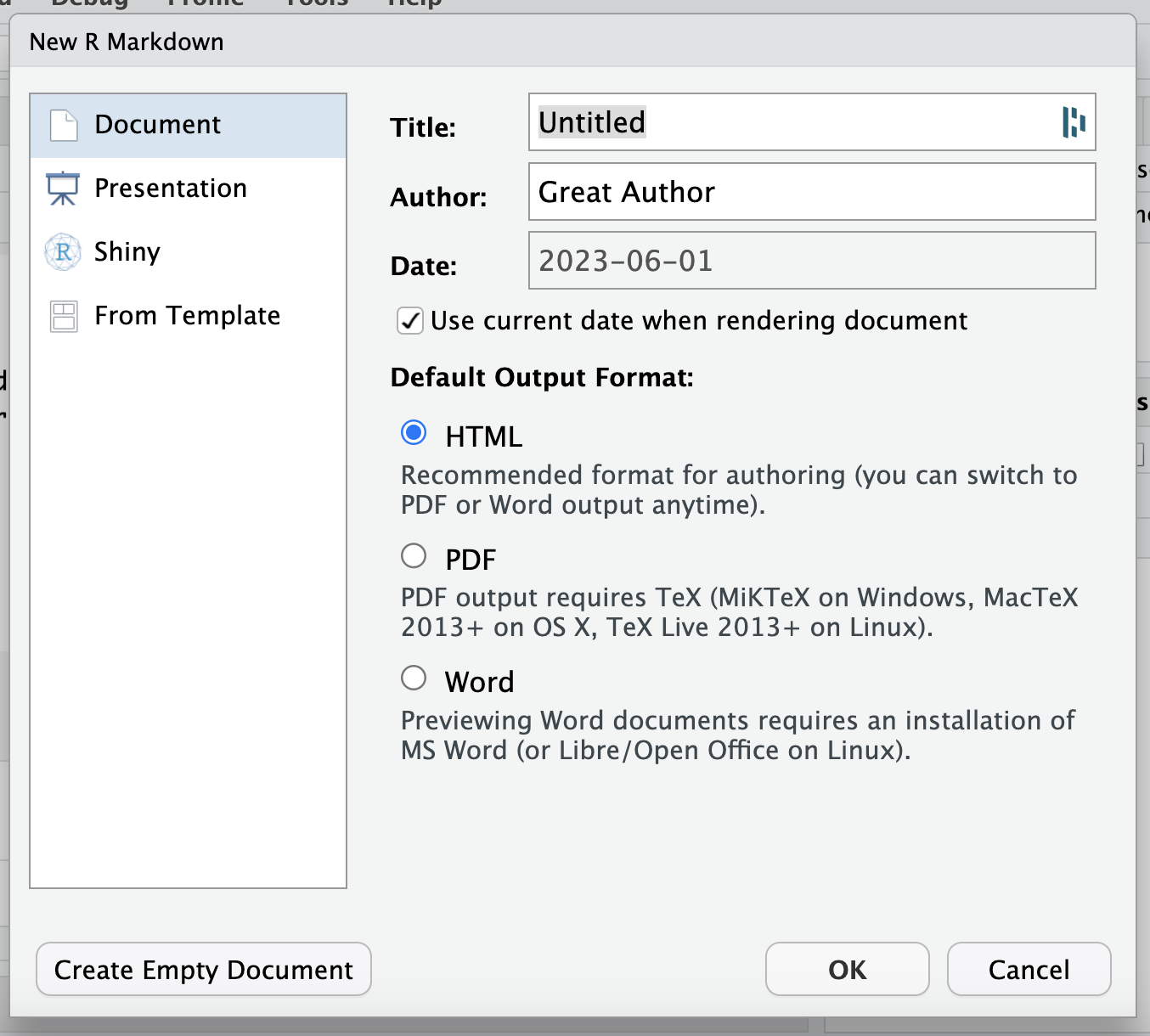
Creating a New RMarkdown Document. Go to File -> New File -> R Markdown.... A dialog box will appear. Enter a title and author for the document, and select the desired output format (HTML, PDF, or Word). Click OK.
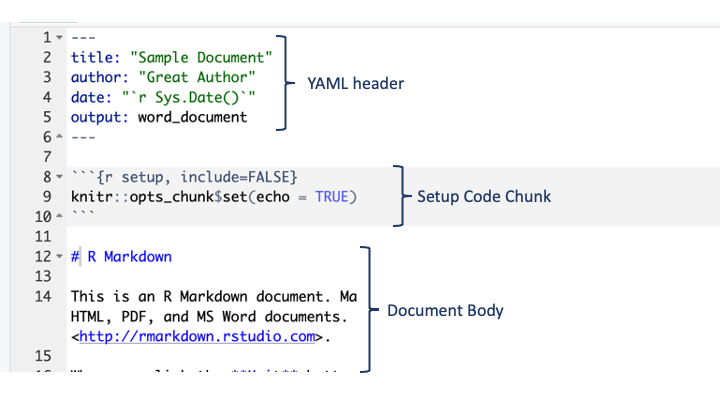
Understanding the Layout. The new document will have some pre-filled content that serves as a template.
The top section, enclosed by
---, is the YAML header. This section contains metadata about your document like the title, author, date, and output format.The setup code chunk is often used to establish global settings for an RMarkdown document.
The rest of the document is where you write your content. You’ll see that there are different types of headings and even a sample R code chunk.
Writing Content. In an RMarkdown document, you can write regular text just like in any text document. To add headings, use # for a first-level heading, ## for a second-level heading, and so on.
Including R Code. To include chunks of R code in your document, you’ll use triple backticks (```) followed by {r}, and end the chunk with triple backticks again. For example:

Note: Ensure to remove the leading spaces from the above code example. Code chunks will be executed when the document is compiled, and the code, along with its output, will be included in the final document.
Compiling the Document. To compile the document and see the final output, click the Knit button in the toolbar or press Ctrl+Shift+K. RStudio will prompt you to save the document before it compiles it. After compilation, the output will be displayed in a new window.
2.3 Basic Formatting with RMarkdown
RMarkdown allows you to apply various formatting styles to your text, which makes your document more readable and organized. Here are some basic formatting options that you can use:
2.3.1 Headers
Headers are created using the # symbol followed by a space and the header text. The number of # symbols determines the level of the header. For instance, # is a level one header (similar to a title), ## is a level two header (similar to a main heading), ### is a level three header, and so on.
# This is a level one header

## This is a level two header

### This is a level three header
2.3.2 Emphasis
You can emphasize text by making it bold or italic. To make text bold, you can wrap the text with two asterisks (**) or two underscores (__). To make it italic, you can wrap the text with one asterisk (*) or one underscore (_).
**This text is bold.**This text is bold.
__This text is also bold.__This text is also bold.
*This text is italic.*This text is italic.
_This text is also italic._This text is also italic.
**_This text is bold and italic._**This text is also italic.
2.3.3 Lists
You can create unordered (bulleted) and ordered (numbered) lists in RMarkdown.
For unordered lists, you can use asterisks (*), plus signs (+), or hyphens (-) followed by a space:
* Item 1
* Item 2
* Item 3
Here is the output:
- Item 1
- Item 2
- Item 3
For ordered lists, you can simply start each line with a number followed by a period and a space:
1. First item
2. Second item
3. Third item
Here is the output:
- First item
- Second item
- Third item
2.3.4 Links
You can create hyperlinks in your text by wrapping the link text in square brackets ([]) and then wrapping the URL in parentheses (()).
[UWRF Website](https://www.uwrf.com/)2.3.5 Images
Similar to links, you can insert images by starting with an exclamation point, followed by the alternative text in square brackets, and the image file path or URL in parentheses:
2.3.6 Blockquotes
You can create blockquotes by starting a line with the > character:
> This is a blockquote.This is the output:
This is a blockquote.
These are just a few of the many formatting options available in RMarkdown, and while the basic formatting options provide a good starting point for creating effective RMarkdown documents, it’s important to note that there’s much more you can do with RMarkdown. It offers a wide range of advanced features and options that allow you to create comprehensive and sophisticated documents. For a deeper dive into the capabilities of RMarkdown, you may want to consult “R Markdown: The Definitive Guide” by Yihui Xie, J.J. Allaire, and Garrett Grolemund. This comprehensive guide covers the full breadth of RMarkdown’s functionality and provides valuable insights that can help you fully leverage the power of RMarkdown.
2.4 Conclusion
RMarkdown is a powerful tool that enables the integration of R code, commentary, and output in a single, reproducible document. It fosters better understanding and communication of your analyses, and enhances collaboration. Its ability to compile into several formats is a bonus when it comes to sharing your work.