Overview
- In this lecture, we’ll take a guided tour of RStudio, exploring:
- The interface layout and key panels.
- How to write and run R scripts.
- Where to find help when working with R.
1. Overview of RStudio
- What is RStudio?
- RStudio is an Integrated Development Environment (IDE) designed specifically for R programming.
- It simplifies the process of writing code, analyzing data, and visualizing results.
- Why use RStudio?
- User-friendly interface for writing and running R scripts.
- Tools for managing data, visualizing results, and navigating R packages.
2. RStudio Interface Layout
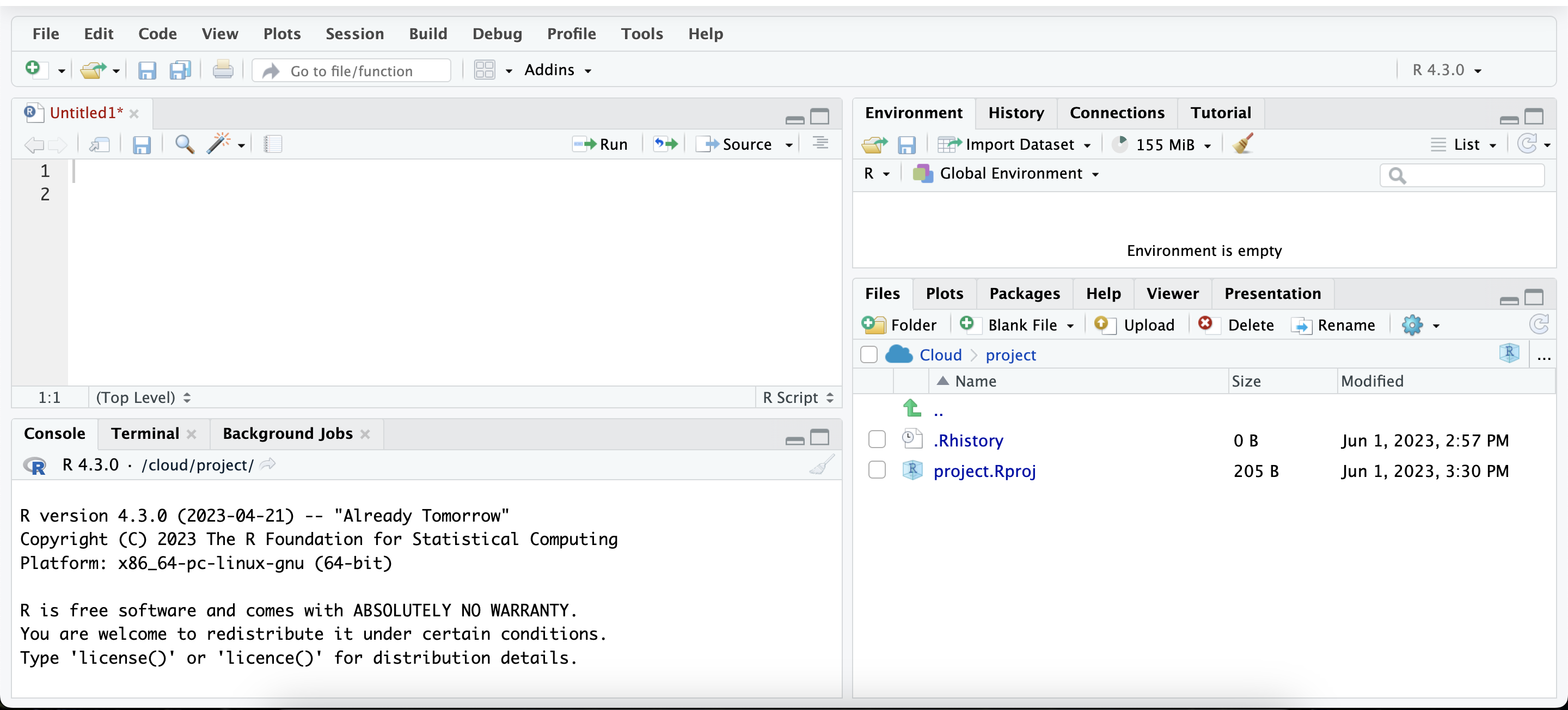
- The RStudio interface is divided into four main panels:
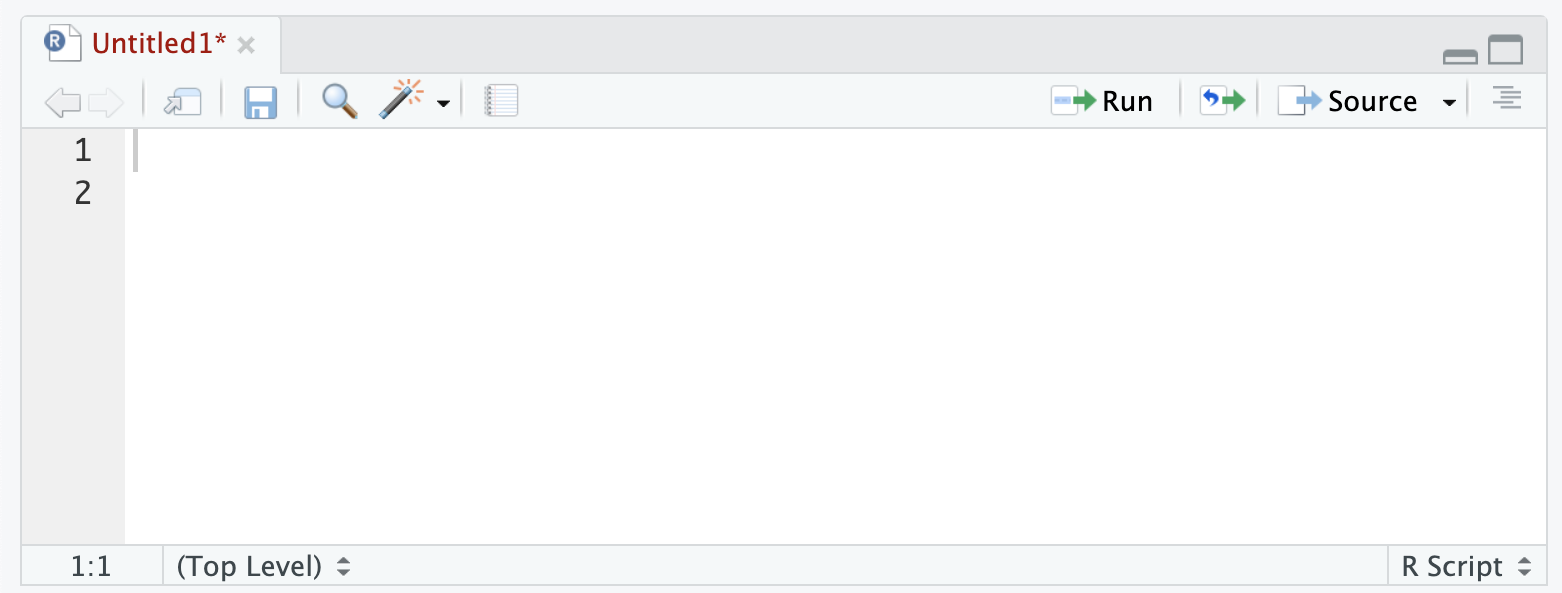
- Source Panel (Top-left):
- Where you write and edit R scripts and functions.
- To create a new script, navigate to
File -> New File -> R Script.
- All code written here can be run in the Console or sourced entirely.
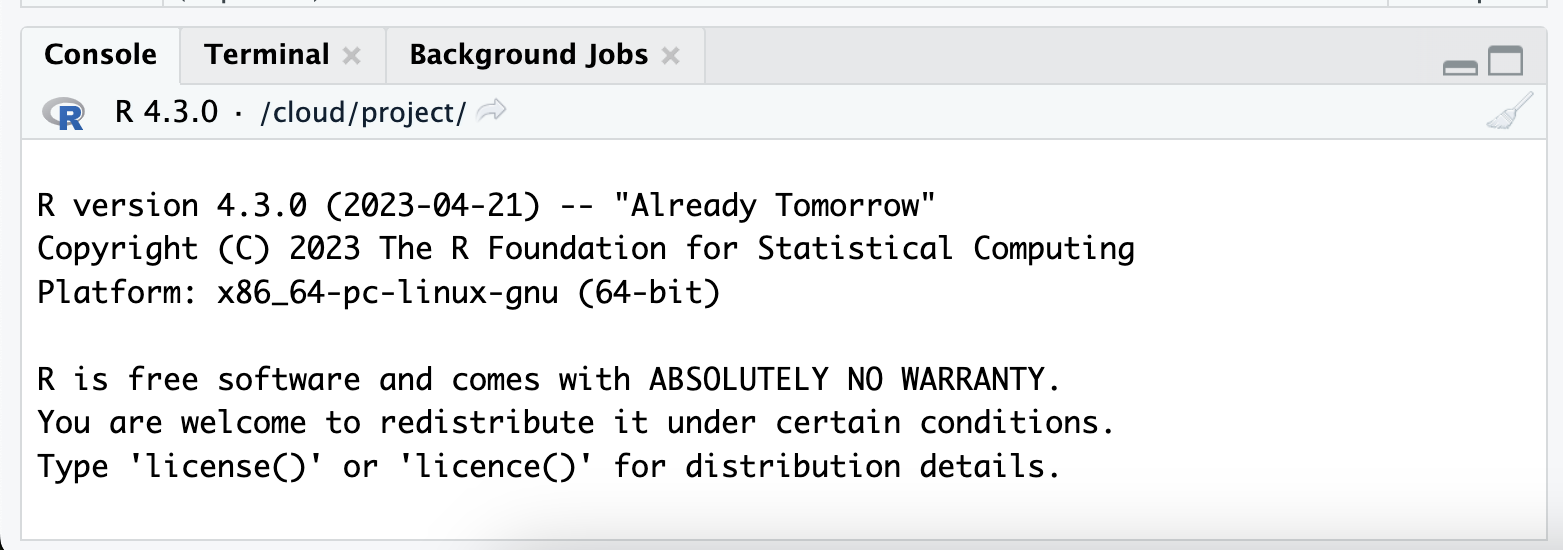
- Console Panel (Bottom-left):
- Where R code is executed.
- Any command typed or run from the script appears here.
- You can also type commands directly into the console to get immediate results.
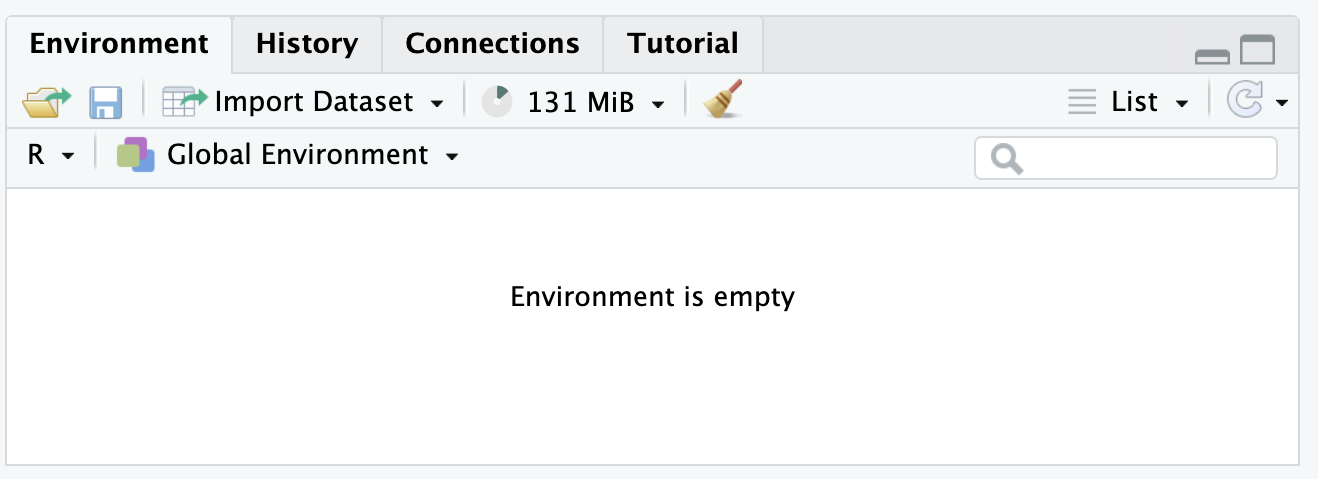
- Environment/History Panel (Top-right):
- Environment Tab:
- Shows all variables, data frames, and objects currently loaded in memory.
- History Tab:
- Keeps a record of all commands you’ve executed.
- This makes it easy to review and reuse past commands.
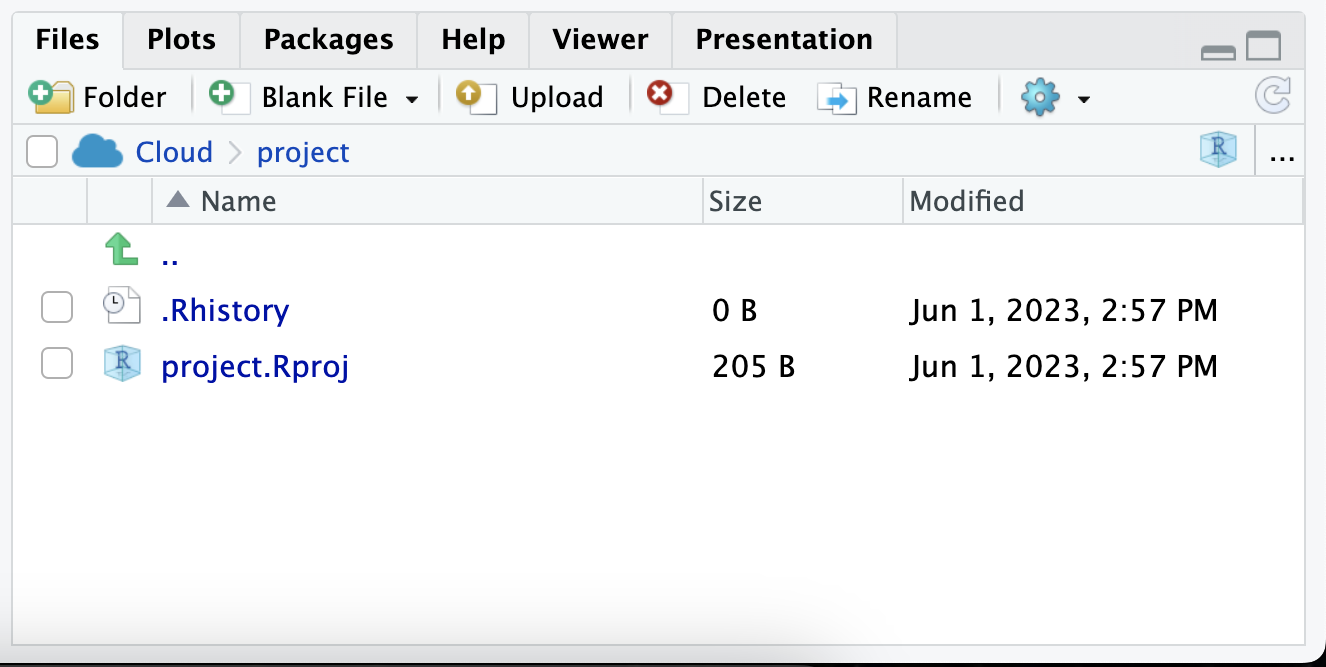
- Files/Plots/Packages/Help Panel (Bottom-right):
- Files Tab: Browse your files, including R scripts and datasets.
- Plots Tab: Displays any graphs or visualizations generated in your R code.
- Packages Tab: Manage installed packages and see what packages are available.
- Help Tab: Access R documentation and RStudio help resources.
3. Writing and Running R Code in RStudio
- Creating an R Script:
- To create a new R script, go to
File -> New File -> R Script.
- This opens a new tab in the Source Panel, where you can write your code.
- Running Code in RStudio:
- You can run individual lines or sections of your code using
Ctrl + Enter (Windows) or Cmd + Enter (Mac).
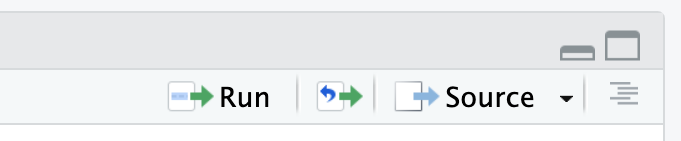
- Alternatively, click the Run button in the toolbar.
- If you want to run the entire script, click on the Source button in the toolbar.
- Console Commands:
- You can also execute commands directly in the Console Panel.
- The results are immediately displayed in the console after pressing Enter.
4. Getting Help in RStudio
- Built-in Help System:
- RStudio offers comprehensive help documentation for R functions and packages.
- You can access help by typing
?function_name or help(function_name) in the Console. For example:
- Help Tab:
- Use the Help Tab in the bottom-right panel to search for specific topics, packages, or functions.
- Code Completion:
- RStudio provides code completion suggestions while typing, which helps in speeding up your workflow.
- Simply start typing a function or variable name and press Tab to see available options.
Key Takeaways
- You’ve learned about the main panels in RStudio and how they function.
- You now know how to write and execute R scripts and commands.
- RStudio’s built-in help system can assist you in finding documentation for functions and packages.
Looking Forward
- In the next lecture, we’ll dive into commands and calculations in R, starting with basic operations like arithmetic and variable assignment.