Overview
- In this lecture, we’ll walk through:
- How to create a Posit.Cloud account.
- Joining your class workspace.
- Preparing to use RStudio in Posit.Cloud for the course.
1. Setting Up Your Posit.Cloud Account
- Why use Posit.Cloud?
- Provides browser-based access to RStudio.
- Removes the need to install software on your local machine.
- Ideal for classroom collaboration and course management.
- Steps to Create a Posit.Cloud Account:
- Navigate to the Posit.Cloud Free Plan:
- Visit the Posit.Cloud Free Plan sign-up page: https://posit.cloud/plans/free.
- The free plan is ideal for students as it offers sufficient resources for classroom work.
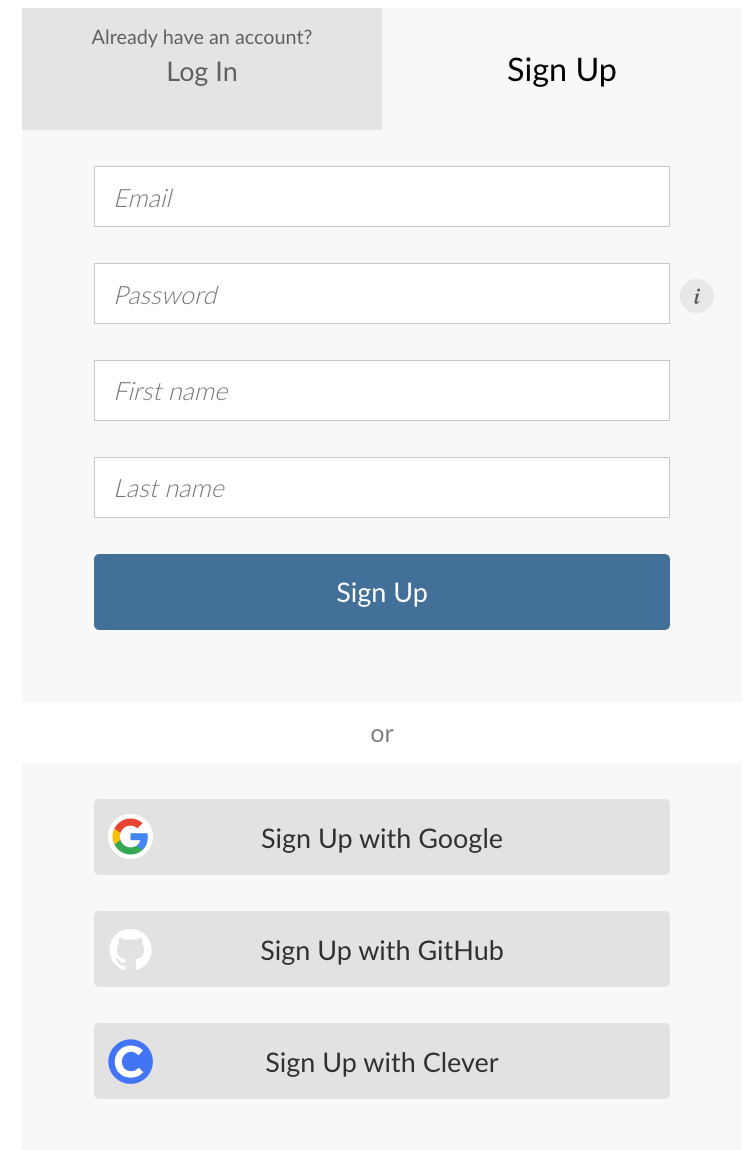
- Fill in the Sign-Up Form:
- Provide your name, email, and password.
- It’s recommended to use your school email for easy integration into your class workspace.
- Email Verification:
- After filling in the form, check your inbox for a verification email from Posit.Cloud.
- Click on the link in the email to verify your account.
- Important Notes:
- Make sure to secure your login information.
- Only you should have access to your Posit.Cloud account.
2. Joining Your Class Workspace
- What is a Workspace?
- A workspace in Posit.Cloud allows for shared projects, resources, and collaboration.
- Your instructor will manage the class workspace and invite you to join it.
- Steps to Join the Class Workspace:
- Check Your Email for an Invitation:
- Your instructor will send you an invitation to join the class workspace via email.
- Accept the Invitation:
- Click the link in the invitation email to join the workspace.
- Explore the Workspace:
- Once inside the workspace, you will see shared projects and any datasets or R scripts provided by the instructor.
- Advantages of Using the Class Workspace:
- Easy access to all class materials in one place.
- Ability to collaborate with other students on projects.
- The instructor can monitor your progress and provide feedback directly within the workspace.
3. Preparing for Class in Posit.Cloud
- Workspace Overview:
- Once in your class workspace, familiarize yourself with the tools and settings available.
- You’ll find shared resources under the Files section and can manage your projects.
- Starting Your First Project:
- Click on New Project to start a new RStudio session in Posit.Cloud.
- You will be taken to an environment that mirrors RStudio Desktop.
- Run R scripts and work with datasets directly in the browser, without the need for installation.
- Navigating Posit.Cloud:
- The layout of RStudio in Posit.Cloud is identical to the desktop version, ensuring a seamless transition between environments.
- Use the Help section for guidance on any RStudio features you’re unfamiliar with.
Key Takeaways
- You have successfully created your Posit.Cloud account.
- You’ve learned how to join your class workspace.
- You are ready to begin working on R projects in the Posit.Cloud environment.
Looking Forward
- In the next lecture, we’ll take a deeper look into RStudio and its various features to help you navigate and use the environment effectively.